New Pattern: Mama Bird
Title: Mama Bird
Designer: Mommy and Me Quilt Co
Technique: Traditional Piecing with curves
Sizes: 3
Colour Layouts in QuiltInk: 6
Fiona, from Mommy and Me Quilt Co has just placed in QuitlInk her Mama Bird #quiltpattern. This pattern was released some weeks ago and in 3 days Fiona starts a QAL so you can sew it together.
The #MamaBirdQuilt #pattern are really 2 patterns,one in large format
and one in small format. It’s Intermediate skill level and comes in 3 sizes, baby,kid and throw. It includes instructions for yardage, fat quarter, and scrappy versions.
It’s full of #color possibilities! Share with us your #quiltnkmockups and let’s inspire each other! The #quiltinkcommunity is the best!
New Pattern: Funkadelic
Title: Funkadelic
Designer: The Retro Quilter
Technique: Traditional Piecing with curves
Sizes: 4
Colour Layouts in QuiltInk: 7
Tomorrow is the big release day for the Funkadelinc #quiltpattern, the amazing new pattern by Maude from The Retro Quilter. You can now start planning your versions and tomorrow be ready to get your copy of the pattern!
The #funkadelicquilt is a truly funky quilt pattern that uses traditional piecingwith curves. It comes in 4 sizes: Wall Hanging, Baby, Throw and Bed and 2 color versions. It’s an advanced pattern!
Quilting is burning with so many new amazing patterns. Have you checked them all? Come to www.quiltink.com and explore through the 205 patterns we host. And remember to register so you will be able to save and share your #mockups!
New Pattern: Budding Stars
Title: Budding Stars
Designer: Heart Lake Quilts
Technique: Traditional Piecing
Sizes: 1
Colour Layouts in QuiltInk: 9
We are happy to announce we have a new designer in QuiltInk! She is Kristin from Heart Lake Quilts, and her first pattern in QuitlInk is the Budding stars! We invite you to visit her website to know more about her and support her amazing job.
The #buddingstarsquilt is a fun pattern design from a playtime session inspired in the
world around Kristin. It’s a 1 size pattern, 48″ X 48″, perfect for a wall hanging, baby quilt, or lap quilt. It is rated for beginners, so a a great pattern for new quilters.
Register for free in QuiltInk and share your unique #mock-ups with us in out public Wall! We can’t wait to see them all!
Music by SonicMusic from Pixabay
Mockupmonday #54
If where you live is so hot like here in Mallorca (Spain) sure your desire to cut fabrics or spend some hours quilting is not your best option right now, so, use QuitlInk to plan your next #quiltprojects and get inspired by the amazing #mock-ups created by the #quiltinkusers. Here are the last 80 added to our Wall during these 2 past weeks.
New patterns are being added to our platform, with a variety of styles. So, sure you find some that fits your expectations! Visit www.quilting.com and start coloring!
Patterns featured in theis #reel are:
Bracken by Julia Wachs Designs
Blomma II by Sand and Stars
Heliconia by Sewistry
Karnak by Tessellate Textiles
Geometre BOM by The Crafty Nomad
Tor by The Hackney Quilter
Solar Flare by Alderwood Studio
Ridges by Bookends Quilting
1963 (Medium Blocks) and
1963 (Small Blocks) by Henry and Ethel
Big Sky Stars and
Great Plains Stars by Plains and Pine
Grid View by Zahm Co
Easter Star XL andStrokes by Capital A Quilts
Assemblage and
Funhouse by Glad Hand Sews
Forest Flowers and
Playful Placemats by Cedar Quilt Co.
Open Road,
Floyd,
Sky Cabin,
Joplin,
Garden Glow by Toad and Sew
Music by ToniSound from Pixabay
New Pattern: Funhouse
Title: Funhouse
Designer: Glad Hand Sews
Technique: Traditional Piecing
Sizes: 1
Colour Layouts in QuiltInk: 1
The Funhouse #quiltpattern by Heather from Grad Hand Sews is another of the new patterns in QuiltInk. If you are looking for a bold and modern design, which is also fun and easy to make, this is your pattern!
The #funhousequilt uses traditional piecing methods with chain piecing and strip sets.Instructions are to make 1 size, Throw – 56″ x 73″. It’s a bold, modern pattern perfect for a beginner quilter. It’s perfect for beginner #quilters and Jelly roll-friendly.
Visit Heather website to know more about the pattern and her amazing designs.
Be part of our #quiltinkcommunity, visit www.quiltink.com, register for free and start coloring. You will be able to save your #mockups and share them into our public Wall.
Music by Mikhail Smusev from Pixabay
New Pattern: Playfull Placemats
Title: Playful Placemats
Designer: Cedar Quilt Co
Technique: Traditional Piecing
Sizes: 1
Colour Layouts in QuiltInk: 4
The Playful Placemats by Helen from Cedar Quilt Co is the new pattern in Quiltink. If you are looking for a fun and free project, don’t miss it!
Music by Onoychenkomusic from Pixaba
New Pattern: Assemblage
Title: Assemblage
Designer: Glad Hand Sews
Technique: Traditional Piecing
Sizes: 1
Colour Layouts in QuiltInk: 1
Meet the new pattern in QuiltInk, the just released Assemblage by Grad Hand Sews. It’s a modern design full of color possibilities. Don’t miss it!!
The #assemblagequilt is a modern quilt design inspired by the creations of female textile artists from the early Bauhaus era. It uses traditional piecing methods with chain piecing and strip sets.Instructions are to make 1 size, Throw – 62″ x 82″. It’s a bold, modern pattern perfect for a beginner quilter.
Visit Heather website to know more about the pattern and her amazing designs. And if you are not yet part of our #quiltinkcommunity, visit www.quiltink.com, register for free and start coloring. You will be able to save your #mockups and share them into our public Wall.
Music by Pavel Bekirov from Pixabay
Info & statistics
QuitInk offers the following information for managing and monitoring your patterns:
- General information:
- Profile information
- Designer information
- Your plan details and management
- Patterns general statistics
- Each pattern statistics
General info and statisctics
Profile information
To manage the information displayed on your profile page, please follow these steps:
- Go to your QuiltInk Profile Page.
- Locate the “person” icon at the top bar and click on it.
- From the drop-down list, select the “Edit Profile” option.
In the Profile Information section, you can perform the following actions:
- Check and change your profile image by clicking on it.
- Review your username in QuitlInk (Note: Username changes require contacting QuiltInk at info@quiltink.com).
- Verify the email associated with your QuiltInk account (Note: Email changes require contacting QuiltInk at info@quiltink.com).
- Change your password by clicking the “Change Password” button.
- Add external links such as your website, Facebook, and Instagram profiles to display on your profile page.
- Toggle the option to show the email icon on your profile, allowing other users to contact you via email.
- Check and modify your profile description.
- “Allow other users to export your mock-ups” is an option that is selected by default when you register on QuiltInk. If you don’t want other users to be able to export your mock-ups published in QuiltInk, please unselect this option.
Designer information
To manage your business information displayed in QuiltInk, found on the 3th tab of your profile page and associated with your pattern details, follow these steps::
- Go to your QuiltInk Profile Page.
- Locate the “person” icon at the top bar and click on it.
- From the drop-down list, select the “Edit Profile” option.
In the Designer Information section, you can perform the following actions:
- Business Image: This image is visible in the designers’ list on the general Info page of QuiltInk, as well as in the “i” icons related to your profile and patterns.
- Link to your public profile page: Here, you can copy the URL that redirects your customers and followers to your profile page. This is where they can view your patterns, mock-ups, and your QuiltInk information. This link is suitable for newsletters or links on your social media accounts.
- Link/code to embed your profile page into your website: This option enables you to offer the capability of coloring your patterns directly on your website. It presents a list of all your patterns, similar to how they appear in the pattern tab on your profile page. Refer to the ‘Embed QuiltInk into Your Website’ tutorial for more information.
- Name and surnames: This information is for QuiltInk’s reference when contacting you.
- Name on Quiltink as Designer: This is the name by which you’ll be known in QuiltInk instead of your username. You can utilize spaces and symbols, allowing you to present your name as you prefer, with no format constraints.
- Description of your business: This description is displayed with all your other business information.
- Contact information: Alongside the business description, you can choose to display your contact information, such as your website, contact email, telephone number, and address. If you prefer not to display them, simply leave the fields blank.
Note: This email address will be the one displayed throughout QuiltInk as your contact email. If you don’t provide it, the email address used during registration will be shown. Remember, you can hide the email button in your profile info section. - Additional image: You can upload up to 3 additional images to QuiltInk, which will be displayed alongside your business information.
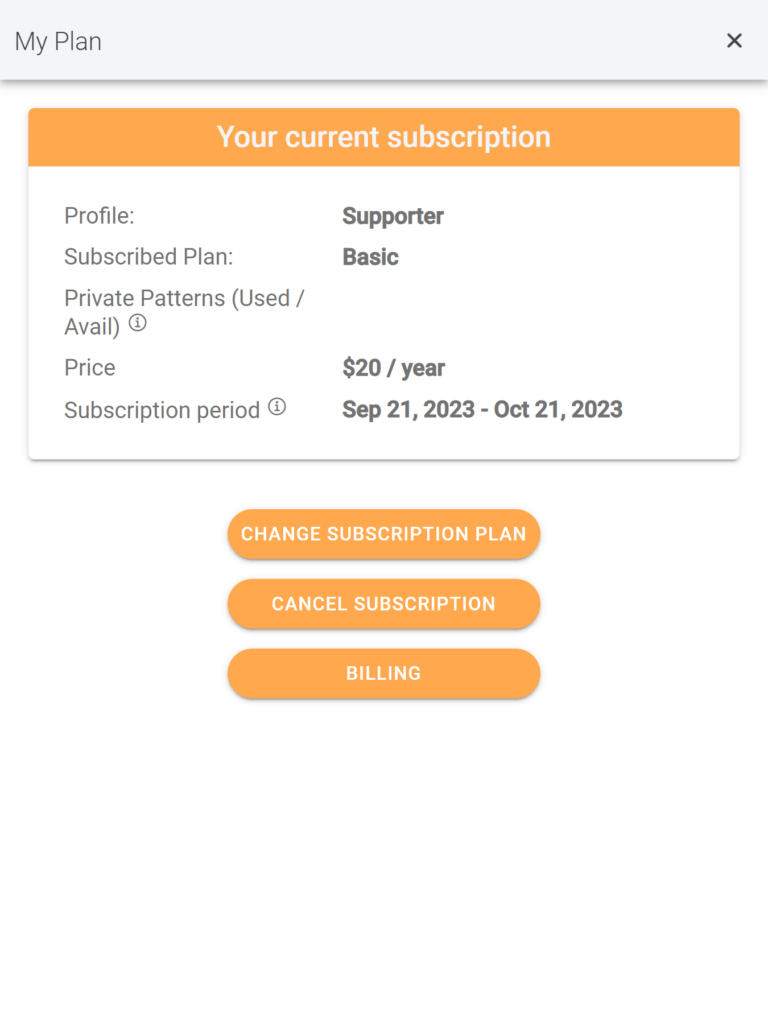
Your Plan
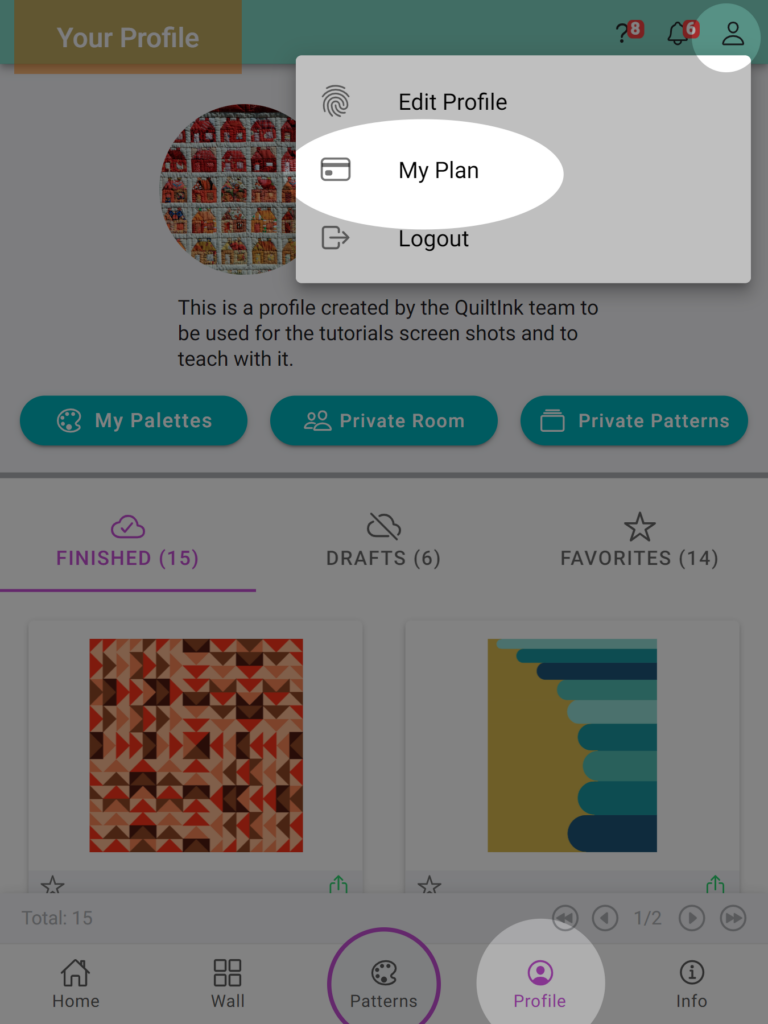
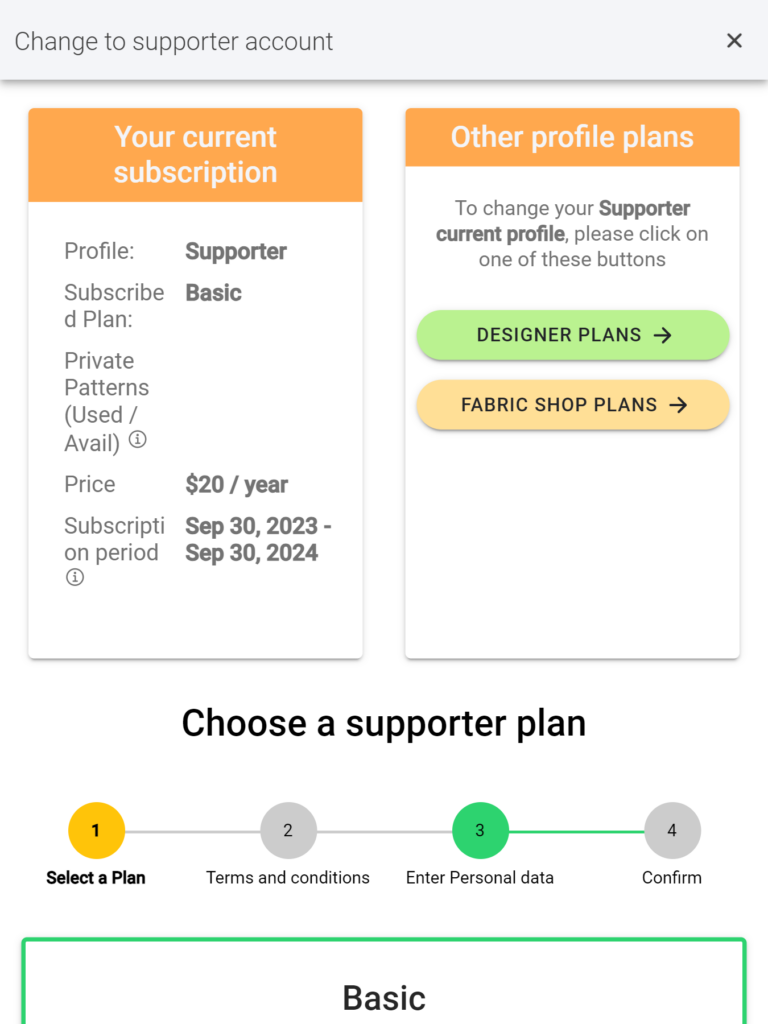
If you want to check the plan you have now active and its renewation period, you can do it at:
- Go to your QuiltInk Profile Page.
- Locate the “person” icon at the top bar and click it.
- From the drop-down list, select the “My Plan” option.
We suggest you check the Terms and Conditions regardless of your subscription if you want to change it.
Patterns general statistics
Concerning your patterns, you can access general statistics that will assist you in managing the patterns you want to upload or replace.
Remember that you can replace a pattern that has been on QuiltInk for more than one year with a new one.
To access the general pattern statistics:
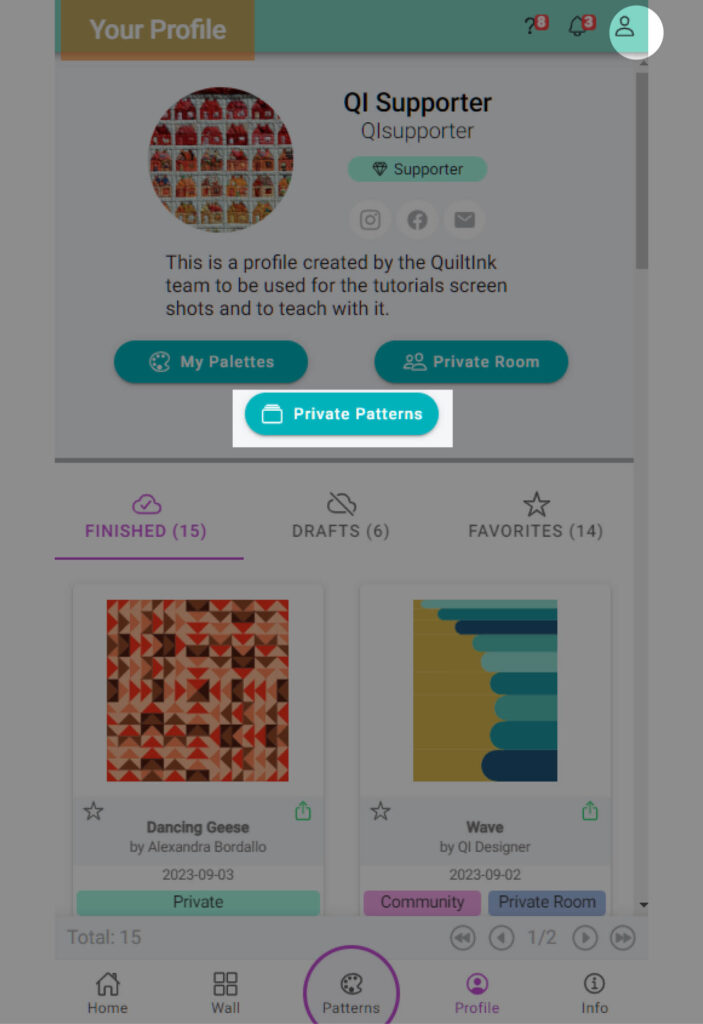
- Visit your QuiltInk Profile Page.
- Click on the “Manage Patterns” button.
- Locate the “i” icon at the top bar bar and click on it.
In the pop-up window, you can find:
- Your subscribed plan is displayed in the top bar.
- About your patterns:
- The total number of patterns you have submitted to QuiltInk.
- The enabled pattern: These are the patterns currently counting toward your plan limit. This number helps you gauge whether you are utilizing all your available pattern slots or if you can still upload new patterns.
Enabled Patterns are further divided into inactive patterns, which aren’t publicly visible but can have a private room, and active patterns, which are available for public or community coloring. - Disabled patterns: These are patterns that you have disabled after being on QuiltInk for more than one year. This allows you to replace them with new ones.
- Available to disable patterns: This is the number of the enabled patterns that have been on QuitlInk for more than one year and you can disable to be replaced by new ones.
- The total number of mockups created across all your patterns is sorted into two categories: public and community. Within these categories, the mockups are further categorized as drafts, unpublished, and published. These statistics provide insight into how extensively your patterns are being colored-in.
Individual pattern info and statistics
Furthermore, QuiltInk provides specific information for each pattern you have submitted. Accessing this information allows you to track the performance and usage of your patterns within the QuiltInk platform.
To access the information for each pattern, please follow these steps:
- Visit your QuiltInk Profile Page.
- Click on the “Manage Patterns” button.
- Locate the pattern you want to check and click on the “…” icon next to its name.
- From the drop-down list, select the “Pattern information” option.
On the pattern’s information page, you will find different sections:
- General information: This section displays the status of the pattern, such as inactive or active (public, community), and whether it has an active private room or kits. You can review all the information you provided when submitting and editing the pattern. You can edit this information on the pattern’s editing page.
- Color layouts statistics: Here, you can see a summary of the number of color layouts you have set up for this pattern, categorized as Draft and Finished. The Finished layouts are further divided into activated and inactive ones.
- Mock-ups statistics: This section shows how many times QuiltInk users have saved a coloring with this pattern. The mock-ups are sorted as Drafts and Finished (published and unpublished). Only the finished and published mock-ups appear on the Wall. Please note that only the mock-ups saved by users with a QuiltInk account will be visible here. It is recommended to encourage your customers to register on QuiltInk so that their mock-ups can be saved and visible to you.
- Codes and links to embed your patterns: In this section, you can copy the codes and links to embed your pattern into your website or external platforms. You can embed the entire pattern or just one color layout. For more information, refer to the “Embed QuitlInk into your website” tutorial.
Please note that QuitInk is connected to software that provides us with statistics about app visits, the number of times your patterns have been accessed for coloring, and the number of times mock-ups in the Wall have been opened, among other data. We are planning to develop a dashboard in the future that will allow you to access and analyze these statistics, providing you with more information about the popularity of your patterns to assist you in managing your patterns effectively within QuitInk and your business.
If you have any questions or concerns related to the info and statistics in QuiltInk or any aspect of using QuiltInk, we are here to help. You can reach out to us via email at info@quiltink.com or through the chat on our Instagram platform (@quilt_ink).
Embed QuitlInk into your website
As a QuiltInk Designer, you have the option to embed your QuiltInk pattern coloring pages on your website.
For those who don’t have a website, there is an alternative option of using a link. This link can be opened in a browser and will directly redirect customers to your pattern coloring pages on QuiltInk. You can place this link on platforms such as Etsy or your Instagram profile, allowing easy access for your customers.
QuitlInk offers you 3 possibility of embedding (or linking) the platform into your website:
- Embed the Patterns tab from your profile page.
- Embed a single pattern.
- Embed a specific color layout.
Code to embed your patterns tab
With this option, you will be able to display and offer access to all your patterns on your website, just as they appear in the Patterns tab of your profile page in QuiltInk.
From there, visitors to your website can select the patterns they wish to color and access their coloring pages.
This option is designed for situations where you want to create an exclusive coloring page on your website using QuiltInk. It provides a comprehensive view of your patterns, making it easy for your customers to explore and color them, ultimately helping them make their selections.
WHERE TO OBTAIN THE CODE/LINK IN QUILTINK
To obtain the code for embedding your patterns tab, follow these steps:
- Log in to your QuiltInk account.
- Click on the person icon on your profile page’s top bar and select “Edit Profile”.
- In the Designer Information section, find the code and link labeled “Code/Link to embed my patterns tab”.
- Copy the code and embed it into your website as described in the section below.
Code to embed one single pattern or color layout
This option is intended for situations where you want to provide the ability to color a single pattern or color layout directly on a webpage, such as on a pattern sales page or within a blog post.
In these scenarios, visitors can color the patterns directly on your website while also getting inspired from the exclusive Wall for that specific pattern, which is included in the embedded window.
WHERE TO OBTAIN THE CODE/LINK IN QUILTINK
To obtain the code for embedding a single pattern or color layout, or the direct link, please follow these steps:
- Log in to your QuiltInk account.
- Click on the “Manage Patterns” button on your profile page.
- Locate the pattern you want to embed and select on the “…” icon next to its name.
- From the drop-down menu, select the “Pattern Information” option..
- At the Information of the pattern page, you will see some information about your pattern, and at the bottom, the codes to embed (or link) your whole pattern or just the color layouts. Copy them and paste into your website as indicated in the next section.
Embed the code/link in your website
Follow the steps below to embed the code or link to your pattern coloring pages in QuiltInk:
- Copy the desired code or link by clicking on it or using the copy icon located on the right.
- Paste the embed code into the “text” editor of your website page. Alternatively, you can share the link to your pattern/color layout wherever you want. The link can be placed in any location where people can copy and paste it into a browser. You can also add a hyperlink to the link, allowing customers to directly access your coloring page by clicking on it. For example, you can include the link in a PDF file, on your Etsy shop, or in your Instagram profile.
Result
The result is that people will be able to color your patterns directly on your website or, if you share the link, in any browser window. Specifically:
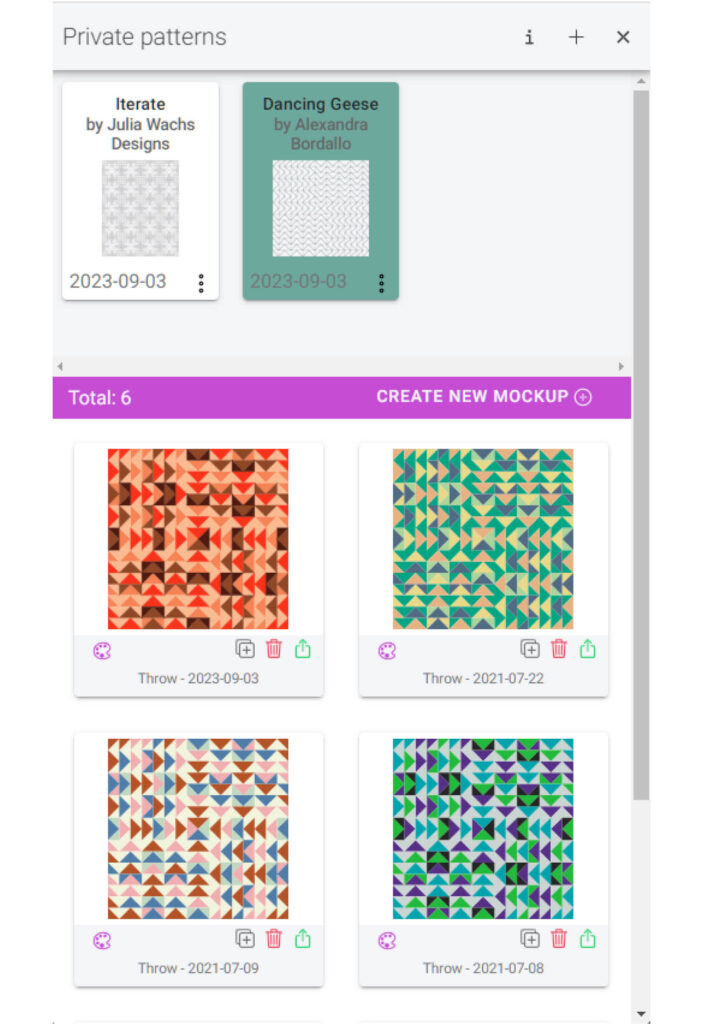
- Embed (link) patterns tab: This option will display the same window as the patterns tab on your QuiltInk profile page, but it will hide the top section with your information. When your visitors click on a pattern, a new window will open, showing the same information and options as the single pattern embed, described below.
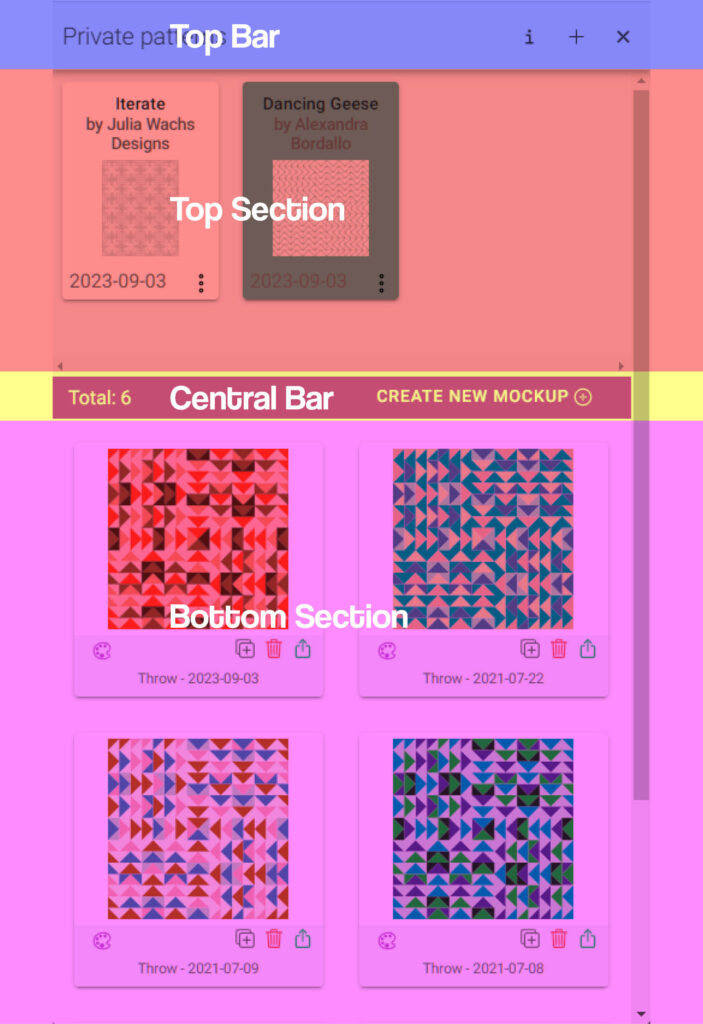
- Embed (link) the main pattern with an exclusive Wall: This embed code/link option will provide your customers with a page featuring three sections:
- Top Section: This section contains the cover image of the pattern, along with titles and other information about the pattern you are about to color.
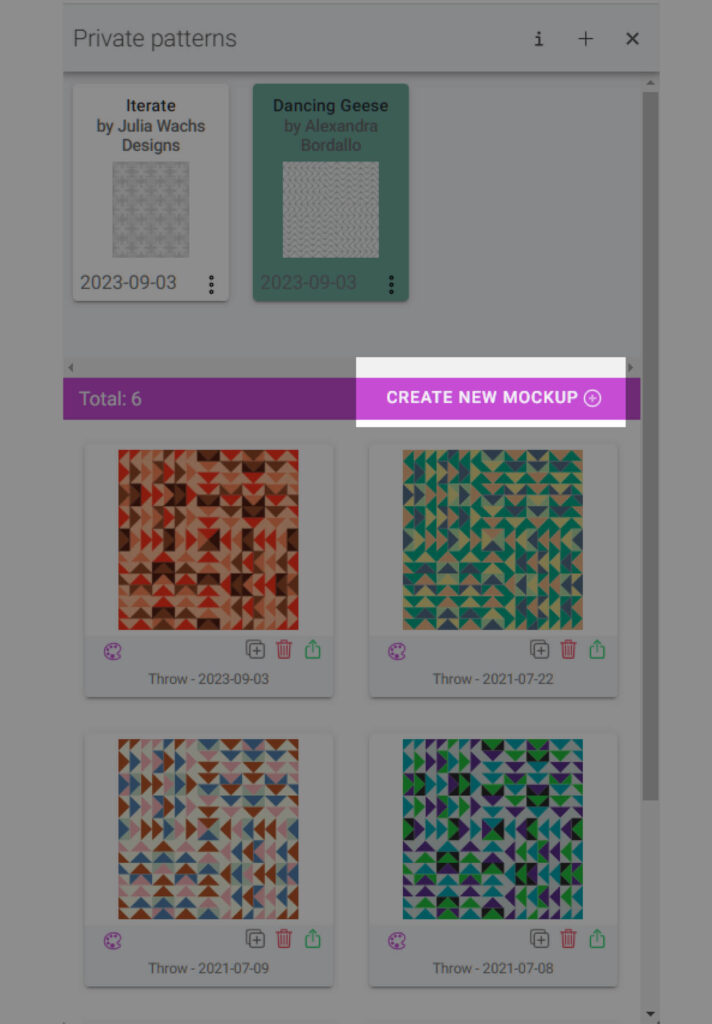
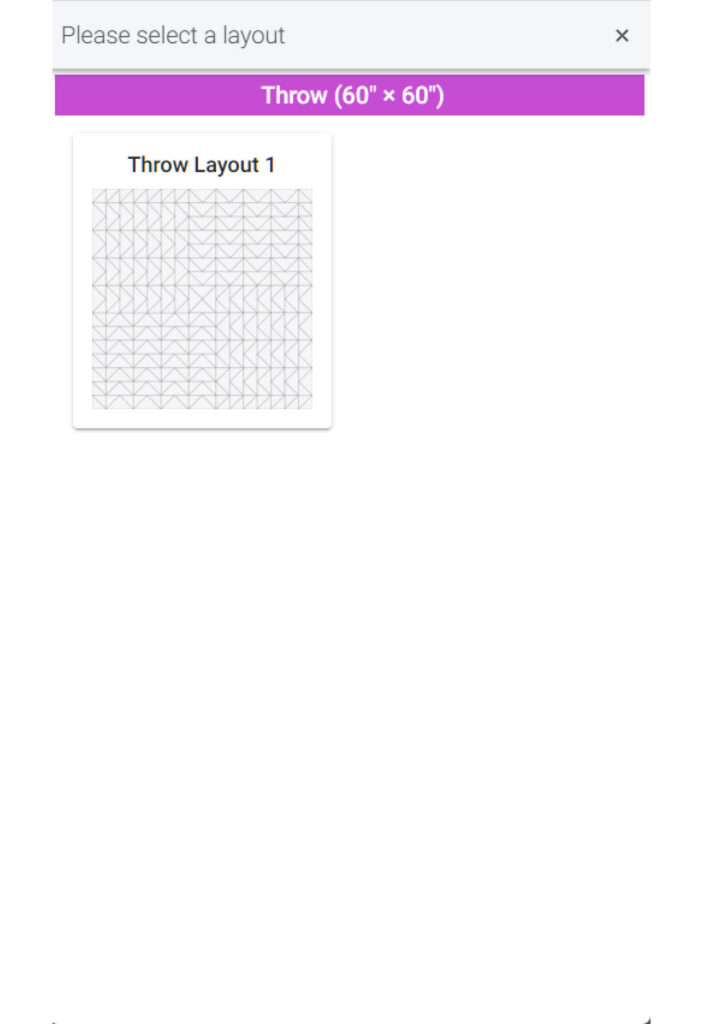
- Central Bar: In the central bar, you will see, on the left, the number of mock-ups of this pattern that have been published into the Public Wall or Community Wall, and on the right, a “Create New Mockup +” button, which allows users to start coloring this pattern and create their own mock-up. When clicking “Create New Mockup +,” they will be able to choose which color layout they want to use as a basis to color your pattern.
- Wall Section: Below the central bar, users will find a section where all the mock-ups of this pattern shared by you and other users are displayed.
- Embed one Colour Layout: This embed code/link directly links to the coloring page for a specific color layout. This option is suitable when you want to place all the individual designs to color in a blog post, for example.
Both options allow users to sign up to save their mock-ups, and if they don’t have an account, a button will redirect them to the QuiltInk platform to register and be able to have an account to save and share their mock-ups.
The embed allows you to offer the colouring QuiltInk service to your customers in a more direct way. They can color the pattern in the product page and then buy the pattern directly, they don’t have to return to your website from QuiltInk. If customers don’t leave your website, they don’t have to come back, so there are more chances they will buy the pattern.
If you have any questions or concerns related to embedding QuitlInk or any aspect of using QuiltInk, we are here to help. You can reach out to us via email at info@quiltink.com or through the chat on our Instagram platform (@quilt_ink).